
Your clients can now share a finished workout with their group, your community, or anywhere
When a client finishes a workout, FitFocus turns it into a card in your brand that they can post to one of their groups or to your community, or share to any other app.

When a client finishes a workout, FitFocus turns it into a card in your brand that they can post to one of their groups or to your community, or share to any other app. Their training partners see the work, and your brand goes wherever the card does.
A card that shows the work
The card is drawn from what the client logged:
- the workout's name, its program, week and day, and the date they completed it, even when they share an older workout;
- their total volume, sets and reps;
- up to five exercises, each with its sets, reps and load, and how many more there are when they don't all fit;
- your logo or organisation name, on your brand colour.
Share it, save it, or post it to your community or a group
A client taps Share workout after they finish a workout, or the share icon at the top of any workout they've completed. One sheet then offers:
- Share, which opens their phone's share options, so they can send the card to any app. Where the browser can't share images, the card downloads instead.
- Save image, which downloads the card.
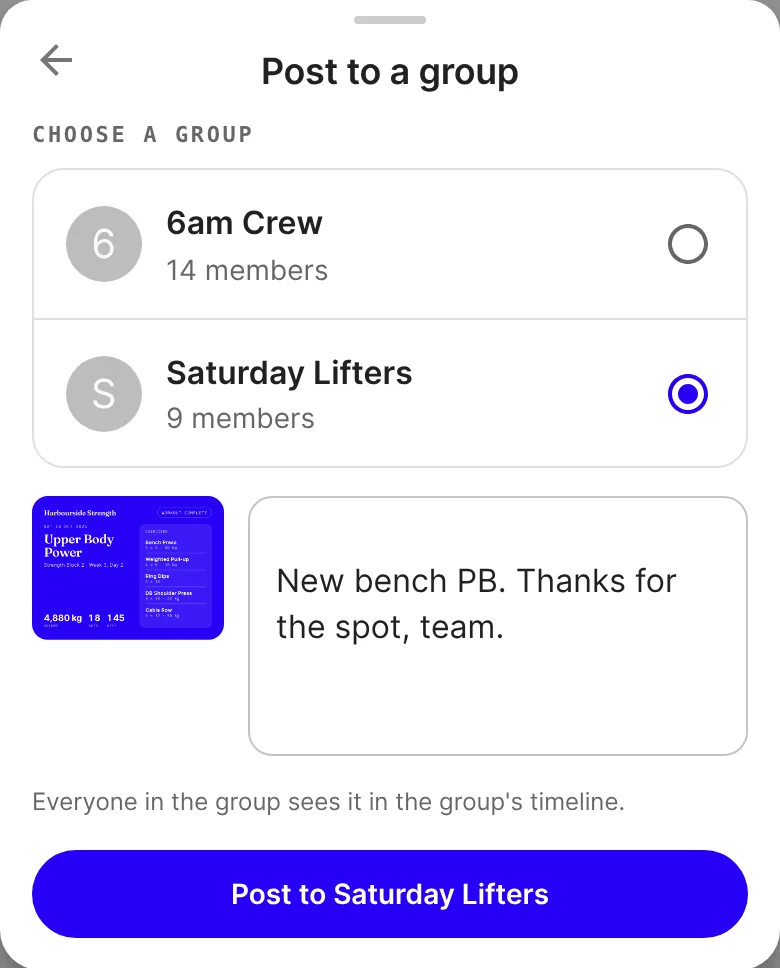
- Post to a group or Post to your group, for the groups they're in.
- Post to community, for your community.
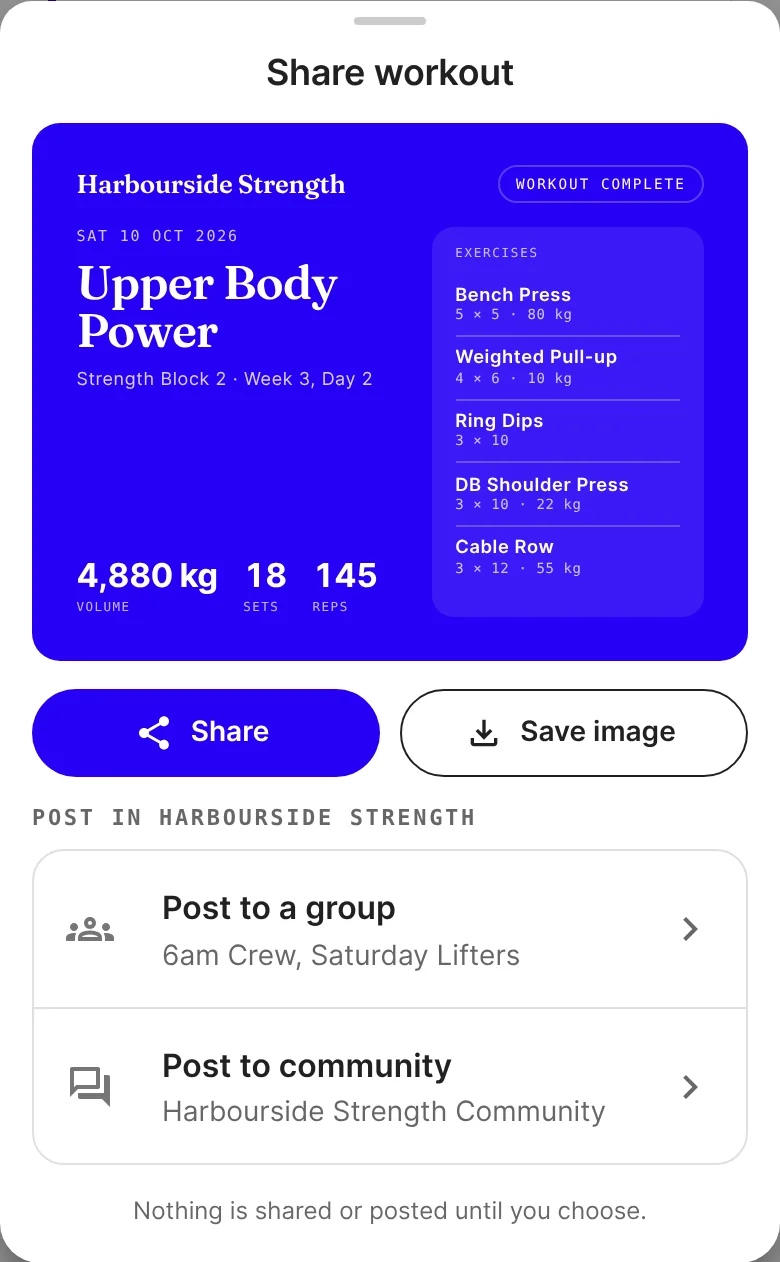
Nothing is shared or posted until they choose.
Posting inside FitFocus
The client picks one group at a time, adds a caption if they like, and taps the button that names where it's going. Everyone in the group sees it in the group's timeline. In the community, it's an ordinary post with the card as its photo, and it follows your community guidelines like any other post.
Good to know
- Clients share their own completed workouts. Coaches don't have a share button, including in Live Training.
- Community posting appears only when the client can post there. A client who hasn't accepted your community guidelines won't see it, nor will anyone while your community is set to announcements only. A client in no groups won't see the group option.
- On the web now, in the apps with their next update. Workout sharing is live on the web, including in a phone's browser. The iOS and Android apps get it with their next store update.
Get started
- Tell your clients: after their next session, they tap Share workout, or the share icon on a workout they've finished.
- If you're an admin, check your logo and primary colour under Organisation › Branding, because the card uses them.

Written by
FitFocus
FitFocus writes about coaching software, pricing, and the business of running a premium coaching practice. FitFocus is part of the Hale Health ecosystem alongside QuickCoach.
Keep reading

Nearly Every Coach Programs the Same Lower-Body Moves. Blame the Chair.
Hamstring curls, leg extensions and hip work turn up in almost every coaching program. Across 70,000 logged workouts, here is what that consistency says.

How Rehab and Physio-Led Coaches Program: Prep First, Load Second
Preparation before load, and load earned rather than scheduled. Across 70,000 logged workouts, the clinical corner of coaching is the one the rest are quietly borrowing from.

Track fibre in your clients' meal plans and food logs
FitFocus now shows fibre for every item, meal and day in your meal plans and recipes, and each client can track a daily fibre target you set.