
Notes on your dashboard: keep your to-dos to yourself, or share them with your team
Keep follow-ups, reminders and ideas on the FitFocus dashboard. Each note is private to you, or shared with every coach in your organisation, and ticked off when it's done.

Your follow-ups, reminders and ideas can now live in FitFocus, on the dashboard you open every day. Each note is private to you, or shared with everyone who coaches in your organisation.
Write it down where you work
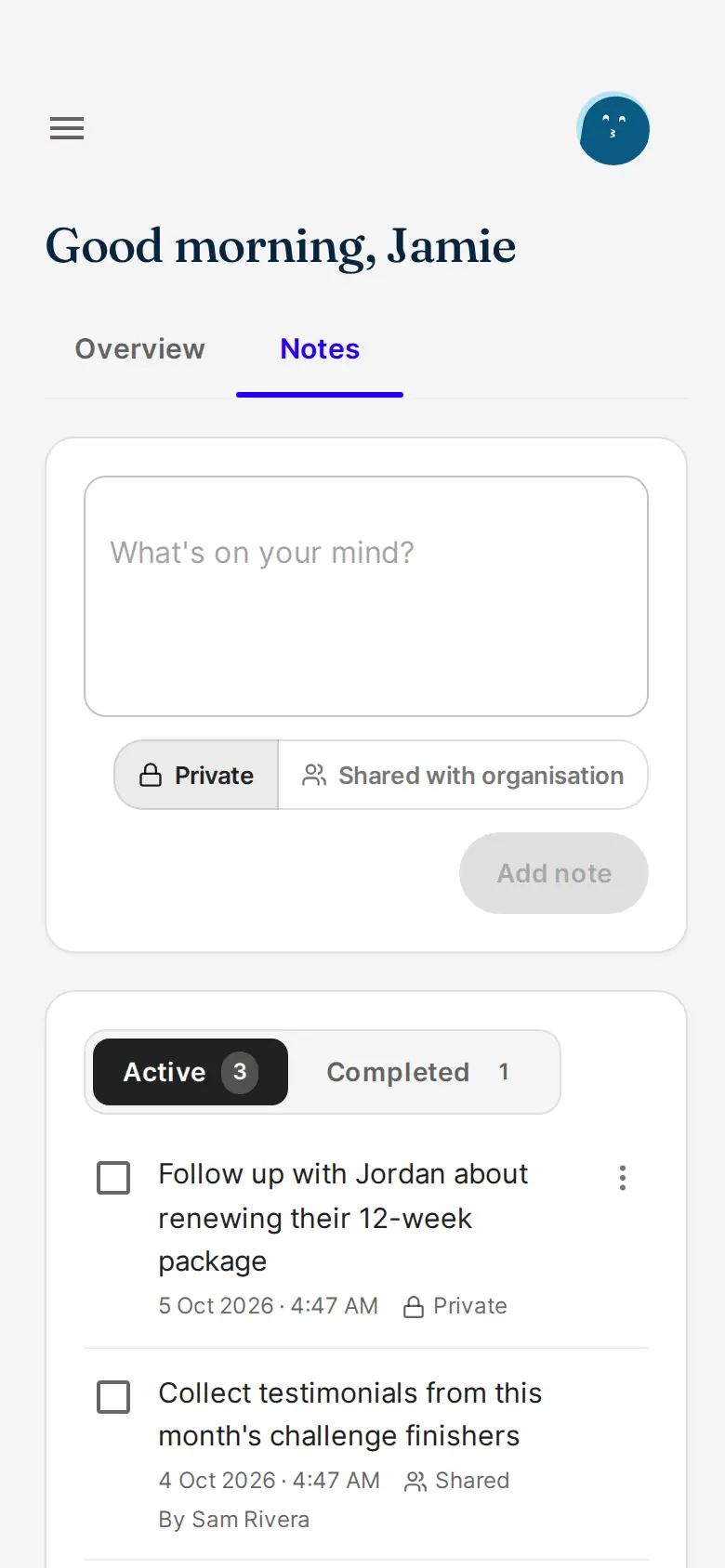
Open the Notes tab beside Overview at the top of your dashboard. Type in What's on your mind? and choose Add note. New notes go to the top of your Active list, and line breaks are kept, so a quick list stays a list.
Private, or shared with your team
- Every new note is Private unless you choose Shared with organisation before you add it.
- A private note is yours alone. Other coaches, admins and your organisation's owner can't see it.
- A shared note appears for every coach and admin in your organisation, with your name on it.
- Each note shows whether it's private or shared. You can change that later from its menu, with Make private or Share with organisation.


Tick it off when it's done
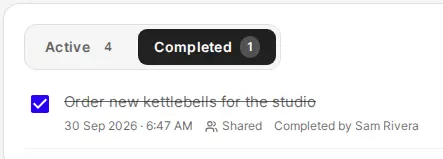
Tick a note and it moves to Completed, most recent first. Untick it to bring it back. Anyone who can see a shared note can tick it off, and the note shows who did. Only the person who wrote a note can edit or delete it.
Good to know
- Notes is for coaches and admins. Clients never see it.
- It's text and a tick: there are no due dates, reminders or assigning a note to someone.
- Deleting a note asks you to confirm, then removes it for everyone.
- Notes is live on the web now, including on a phone's browser. It reaches the iOS and Android apps with their next store update.
- Workplace wellbeing organisations have their own dashboard, which doesn't have the Notes tab.
Get started
- Open your Dashboard and choose the Notes tab.
- Add the follow-up you'd otherwise keep in another app.
- For a job the whole team should see, choose Shared with organisation, then Add note.

Written by
FitFocus
FitFocus writes about coaching software, pricing, and the business of running a premium coaching practice. FitFocus is part of the Hale Health ecosystem alongside QuickCoach.
Keep reading

How CrossFit Coaches Program: Three Sports, One Session
Weightlifting, gymnastics and conditioning, scored every time. Across 70,000 logged workouts, CrossFit is the archetype that refuses to specialise, and four of its moves travel to any roster.

How Olympic Weightlifting Coaches Program: Speed Over Load
Two lifts and a mountain of derivatives. Across 70,000 logged workouts, Olympic weightlifting is coaching's most repetitive programming, and four of its moves travel to any roster.

How Physique and Bodybuilding Coaches Program: Muscle Over Load
Machine country. Across 70,000 logged workouts, physique is the biggest style in coaching, built one muscle at a time, and four of its moves travel to any roster.