
Train your whole group from one screen
Add each client in a small group to one Live Training screen, see how many sets everyone has logged, and switch between them with one tap.
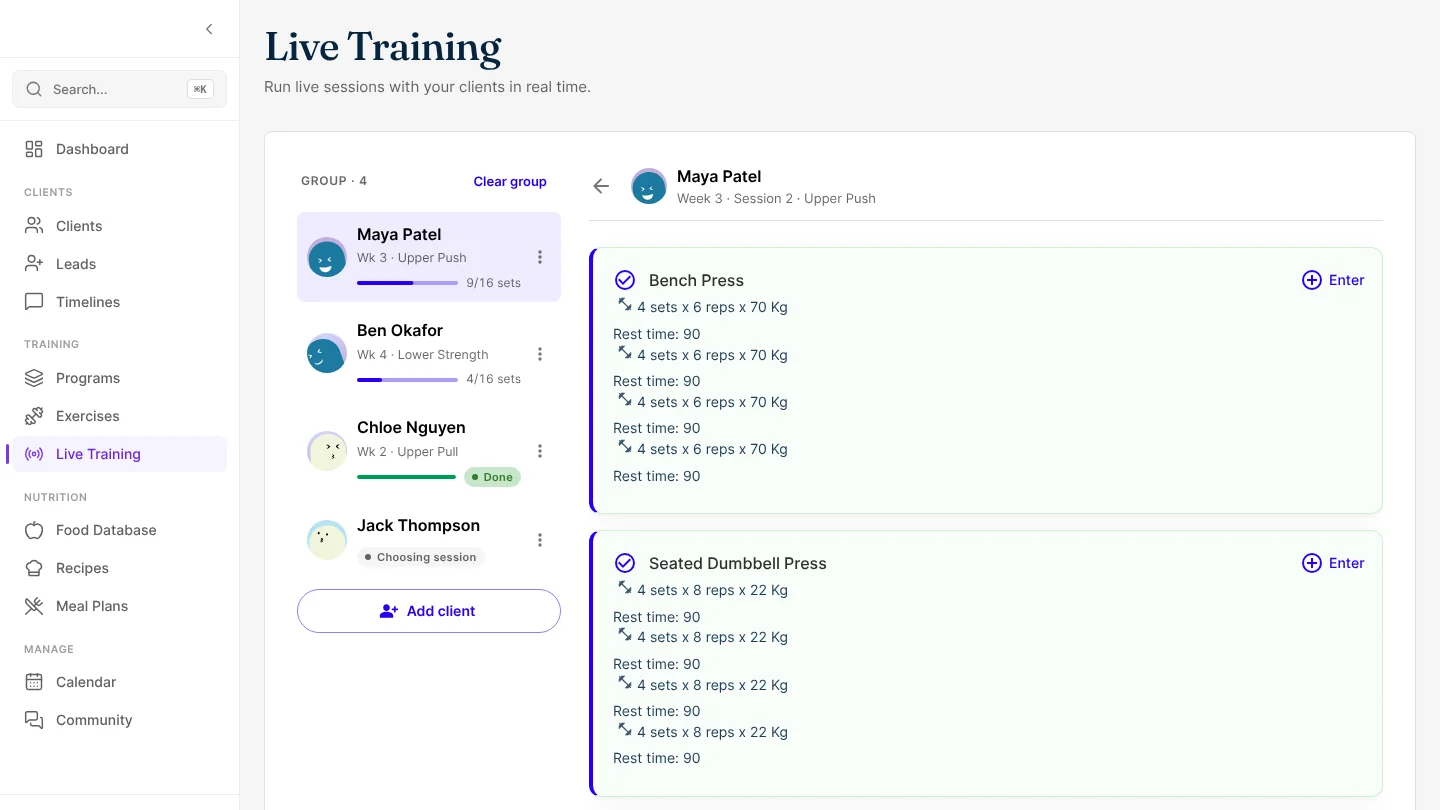
Running a small group or a semi-private session? Add each client to the same Live Training screen and move between them with one tap. No more tab per client, and you can see where everyone is up to.
It suits the group sessions clients book with you, and it builds on Live Training opening each client's next session.
Add a client without leaving the session
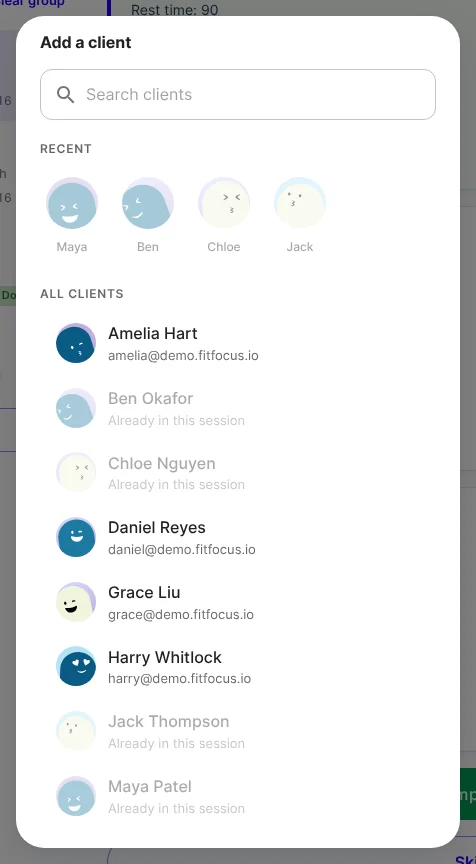
While a session is open, tap Add client at the top and pick the next person from Recent or search. They open with their next session ready, just as when you pick a single client. Anyone already in the group is greyed out.
See where everyone is up to
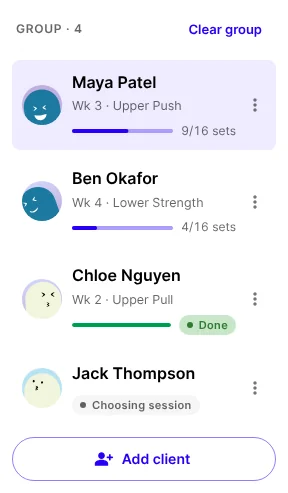
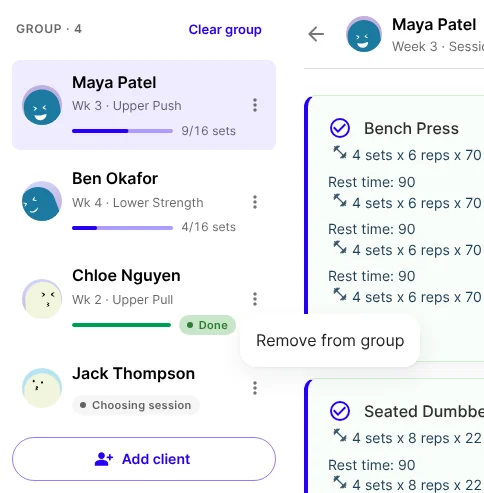
On a computer or a tablet held landscape, the group sits beside the session. Each person shows the session they're on and how many sets are logged, such as 9/16 sets, and the count moves as you log. Done means they've completed their session, and Choosing session means you haven't started one yet.
Tap a name to switch. Nothing reloads, and anything you've typed but not yet saved for someone is still there when you come back.
On a phone
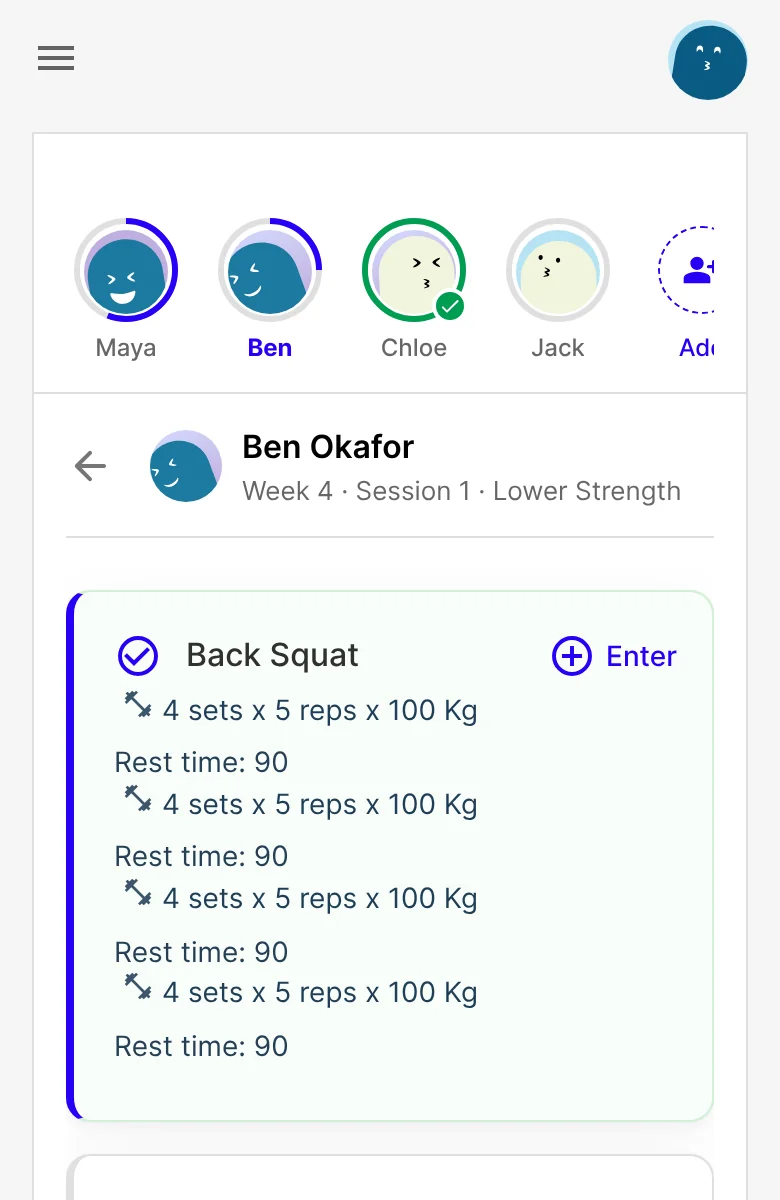
The group becomes a row of faces across the top, each with a ring that fills as sets are logged, and a tick when they're done. Add sits at the end of the row.
When someone finishes
Complete their session and send feedback as usual. They stay in the group, marked Done, and you'll see "Maya's session saved." You stay on that client, so you can start their next session or tap the next person.
Tidy up
Open ⋯ next to a name, or press and hold their face on a phone, and choose Remove from group. Their logged sets are saved. On a computer, Clear group above the list empties it after you confirm.
Good to know
- Training one client works exactly as before. The group only appears once you add a second client.
- A group holds up to 8 clients.
- The group is kept on the device you're using, so a reload or a skipped session brings you back to it. It isn't shared with your other devices, and it's cleared when you sign out.
- Run the group in one Live Training tab. Two tabs on the same device share one group.
- Live on the web now. It reaches the iOS and Android apps with their next store update. Each client's finished session shows in their app as it does today.
Get started
- Choose Live Training under Training in the sidebar.
- Pick your first client and tap Start session.
- Tap Add client, pick the next person and start their session.
- Tap a name, or a face on a phone, to switch.

Written by
FitFocus team
FitFocus writes about coaching software, pricing, and the business of running a premium coaching practice. FitFocus is part of the Hale Health ecosystem.
Keep reading

Coaches Now Program More Pulling Than Pushing
Monday is still chest day in most gyms. In premium coaching programs it isn't. The row reaches nearly two in three clients, the bench press about one in three, and we think the coaches have it right.
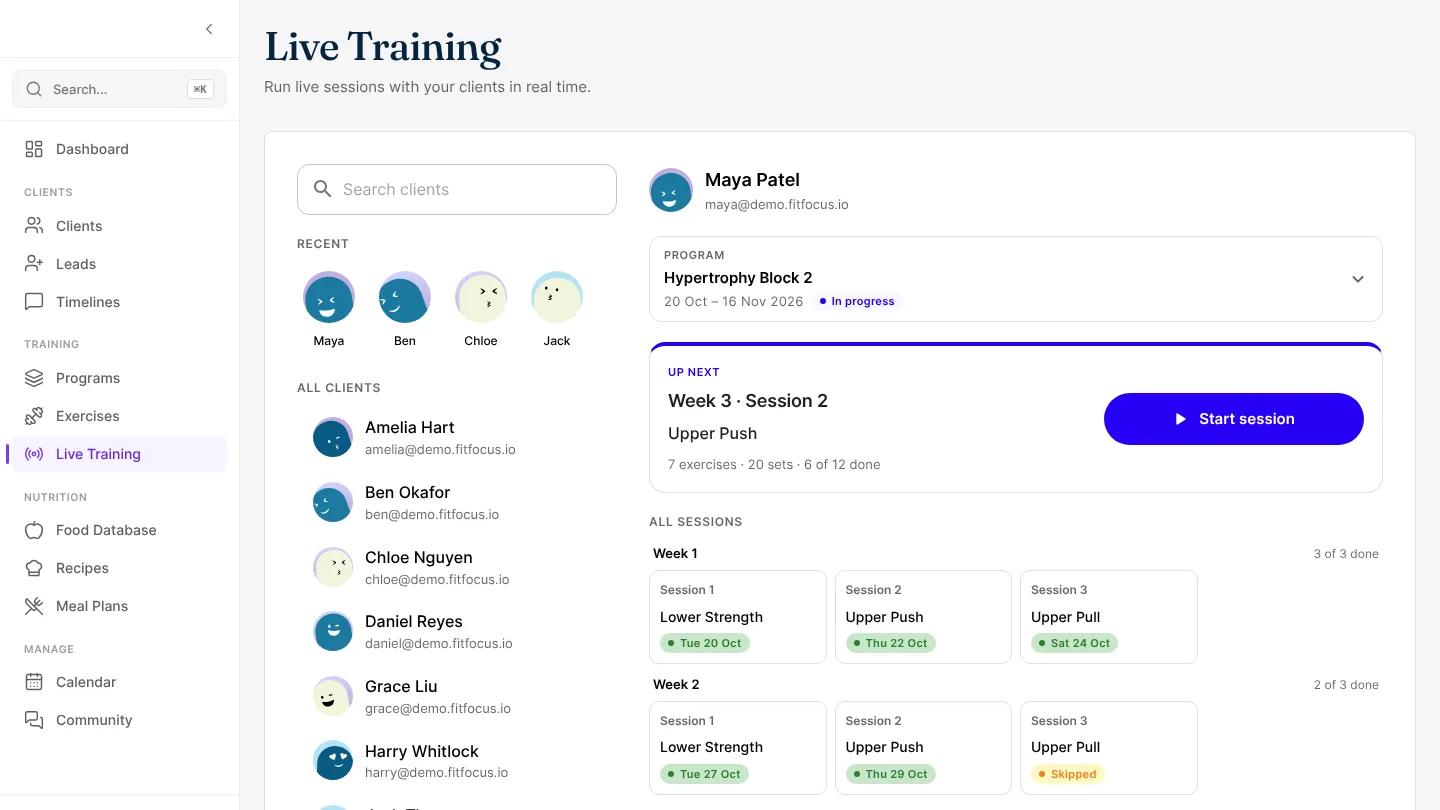
Live Training opens your client's next session
Pick your client in Live Training and their next session is ready to start. No more choosing the program and session from lists.

How Many Sets Per Exercise Do Coaches Program?
Three sets of ten is the gym default. Across every set premium coaches prescribed on FitFocus in October 2026, the average was closer to two and a half per exercise, and the reason is weekly volume.