
See everything about a contact, and tag and group them
Every lead and client gets one Activity history, and their lead history carries over when they become a client. Tag people, find them by tag and save a group as a segment.
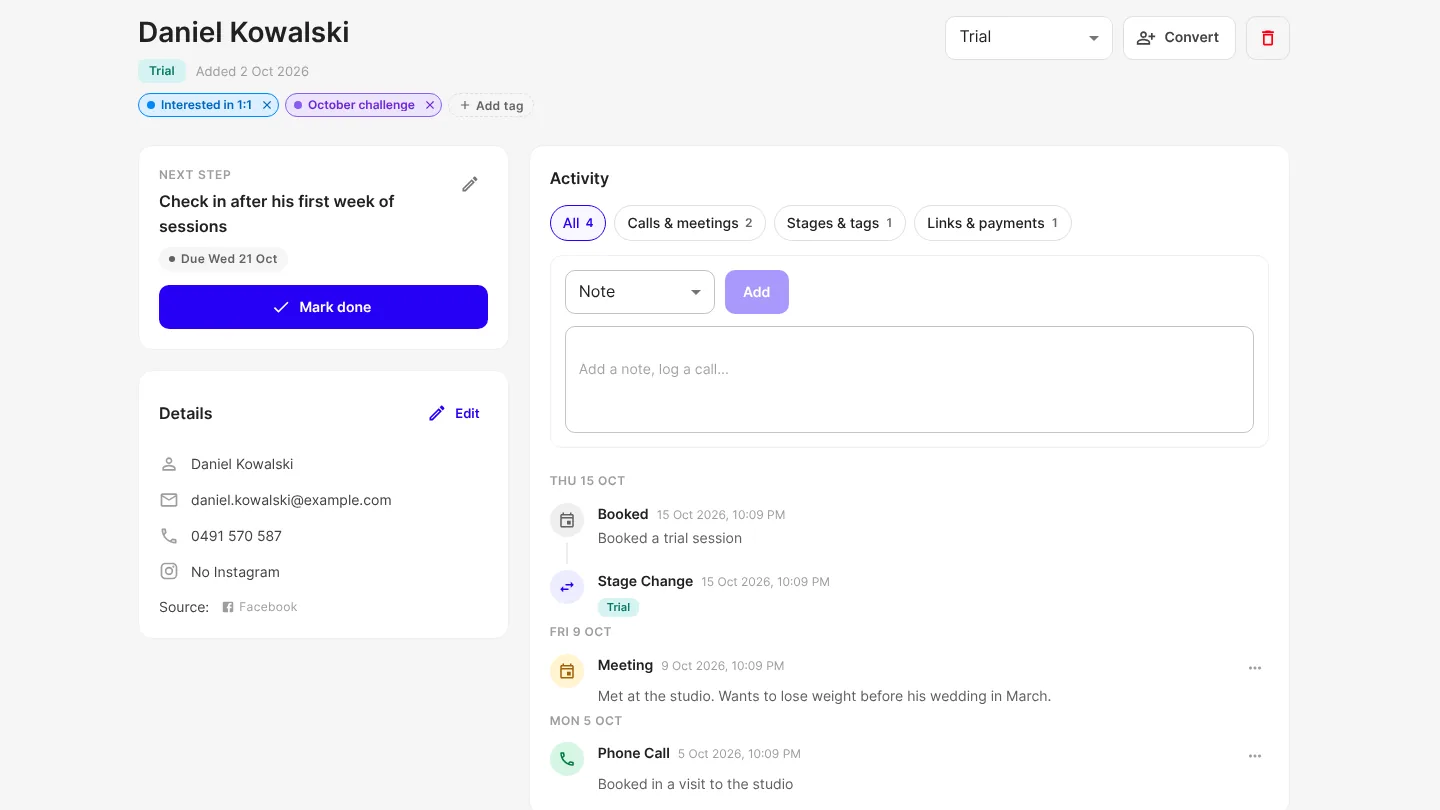
Every lead and client now has one Activity history, and you can tag people and save groups of them, so you stop rebuilding the same filter.
One history for every lead and client
Open a lead or client and Activity lists what has happened with them, newest first: notes, calls, emails, meetings, bookings and payments, plus a lead's enquiries and stage changes. Chips such as Calls & meetings narrow it down.
Add a note, or log a call, email or meeting, on a client as on a lead, and edit or delete your own entries.
History that carries across
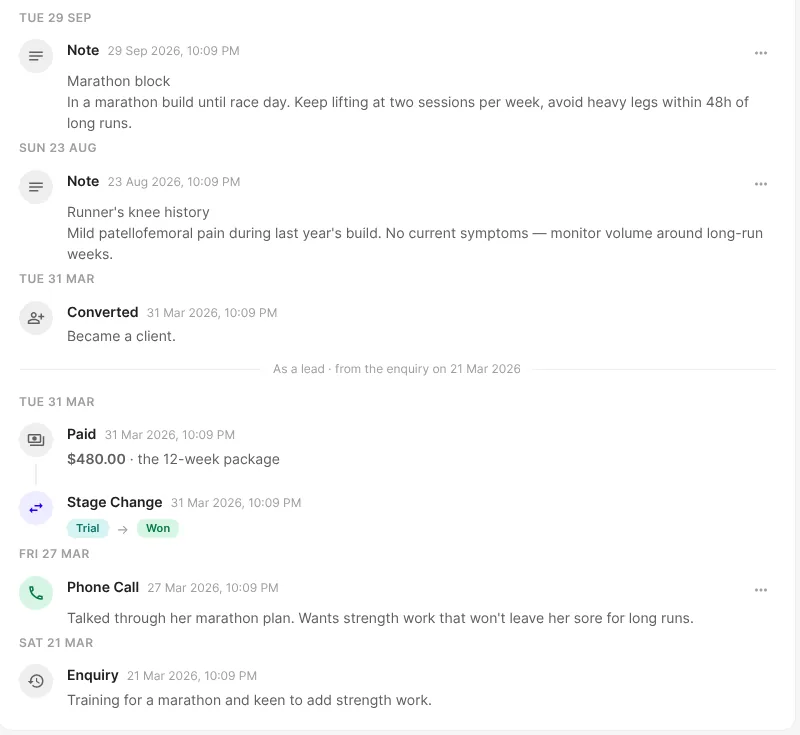
When a lead becomes a client, their lead history comes with them. On the client's Activity tab you see "Became a client", then everything from before, under "As a lead". The old lead page links to the client's.
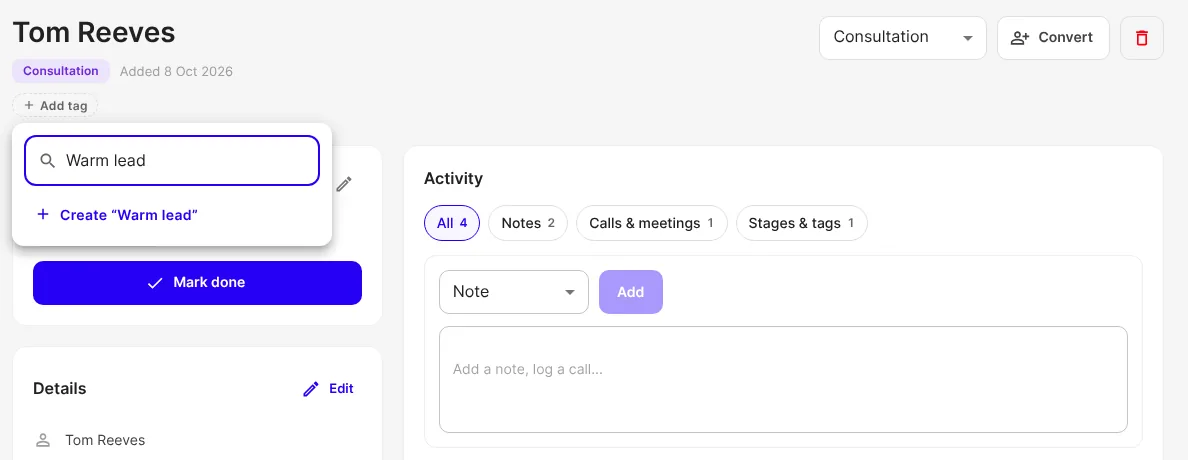
Tag leads and clients
Choose Add tag under a name, then search, or type a new name to create one. Tags are shared with your team, work on leads and clients alike, and stay when a lead becomes a client. Leads and clients never see them.
Choose Select to tag several people at once. Rename, recolour and delete tags under Tags and segments in the ⋯ menu.
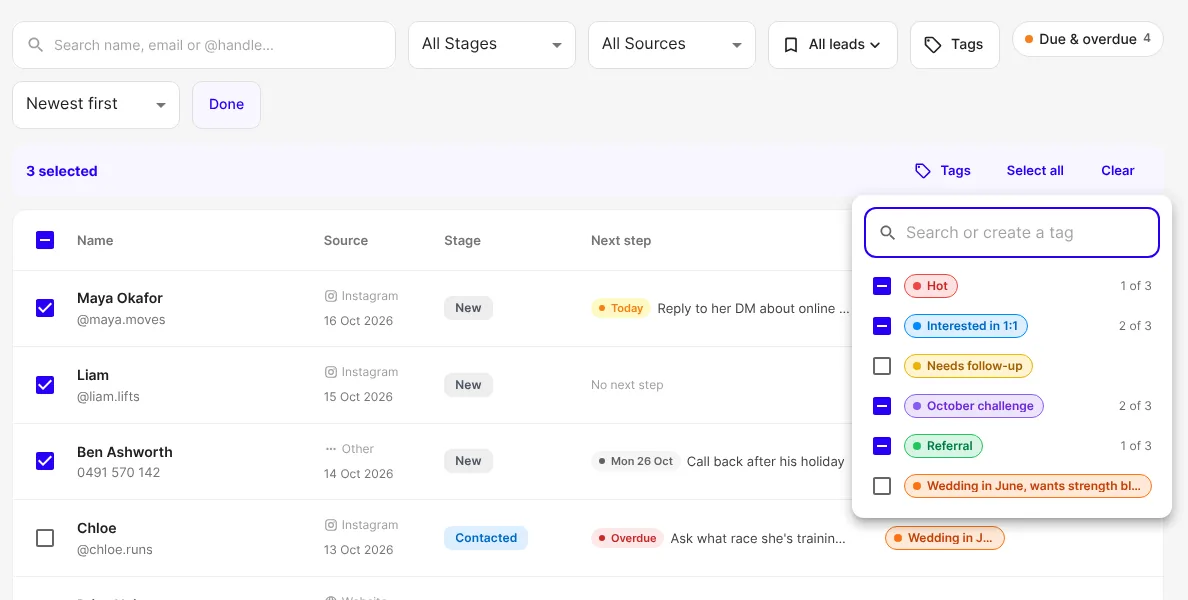
Find people by tag
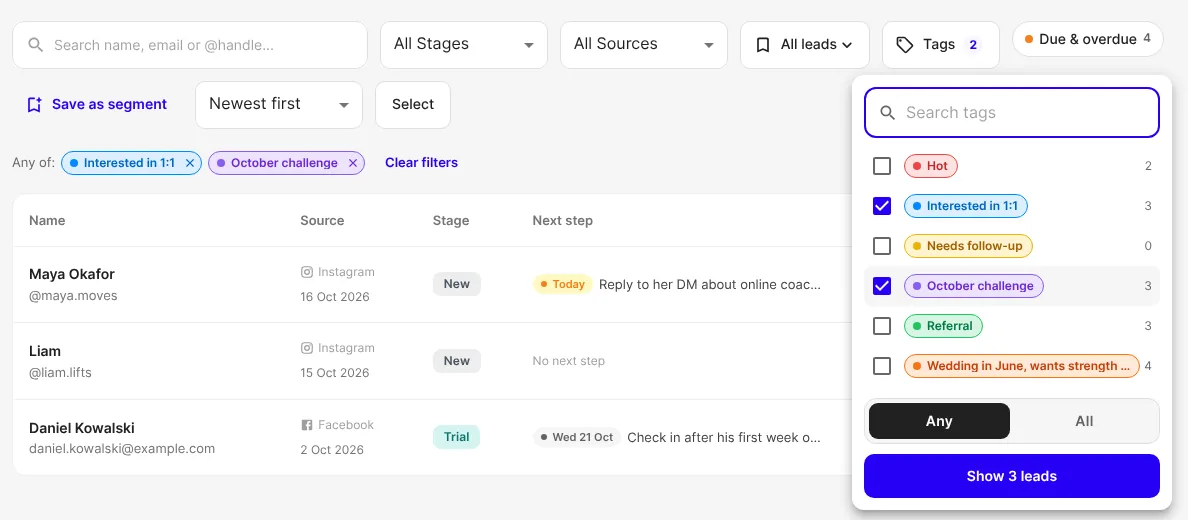
Choose Tags on the Leads or Clients list, tick tags, then pick Any or All.
Save a group as a segment
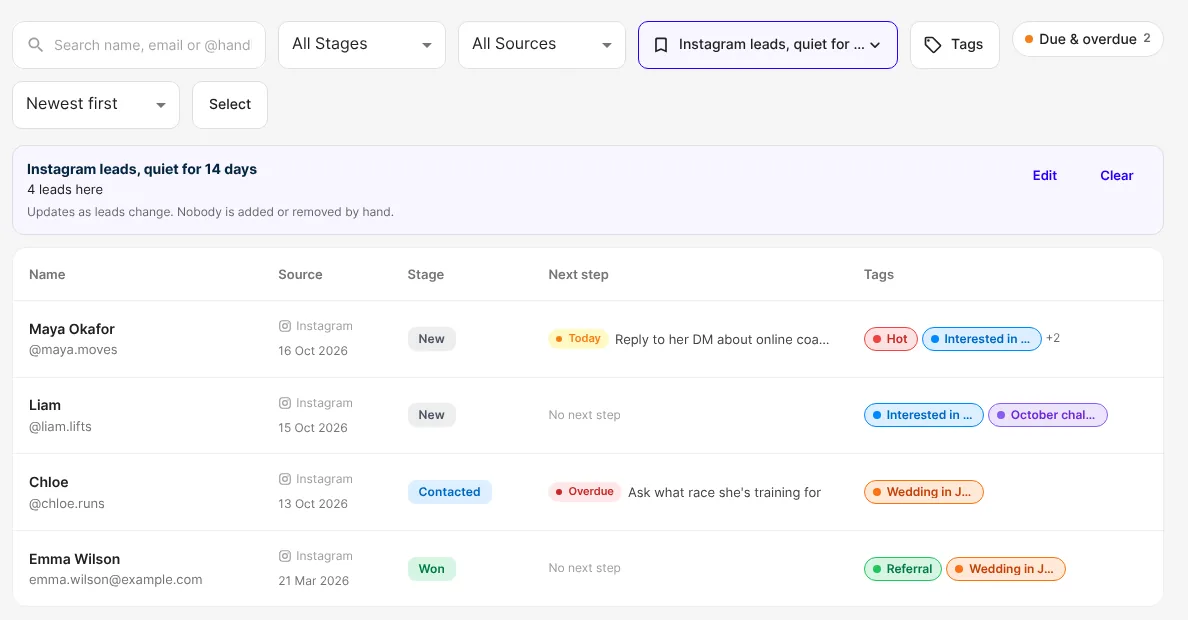
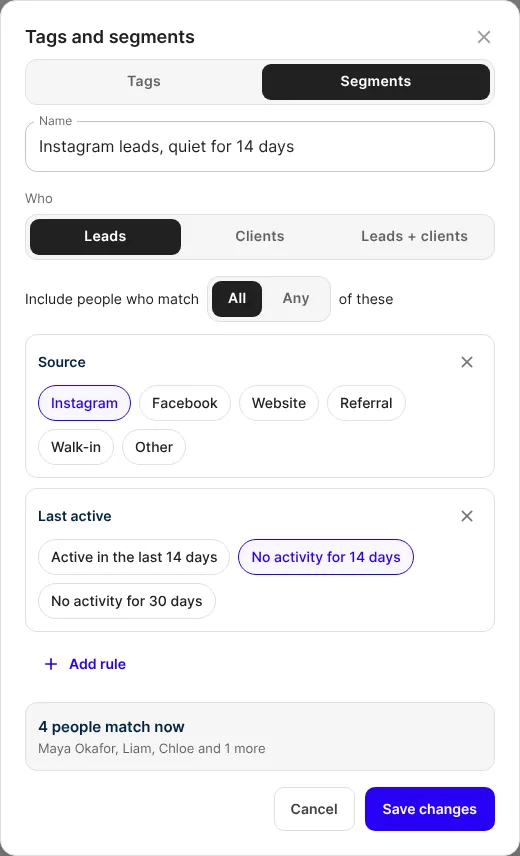
A segment is a saved group chosen by rules: tag, source, stage, lead or client, assigned coach, and when they were added or last active. It's live: it shows whoever matches now, with a count, and nobody is added by hand. Open one from the Segments button on Leads or Clients, or choose Save as segment after filtering. Your team shares them.
Good to know
- A segment doesn't send anything. It's for finding people and working through them.
- If a tag in a segment is deleted, the segment shows "Needs attention" and matches nobody until you edit it.
- Exporting leads as CSV still includes everyone, not just the segment on screen.
Get started
- Open a lead and choose Add tag under their name.
- On the Leads list, choose Tags and pick it.
- Choose Save as segment, name it and save.

Written by
FitFocus team
FitFocus writes about coaching software, pricing, and the business of running a premium coaching practice. FitFocus is part of the Hale Health ecosystem.
Keep reading

Handing a Client to Another Coach Without Losing Them
A client who signed up for you and is reassigned to someone else is the most delicate moment in a coaching business. The five-stage hand-off, the words that work at each stage, the two transfers to refuse, and the thirty-day check that tells you whether it took.
Get enquiries straight into Leads, and never miss a follow-up
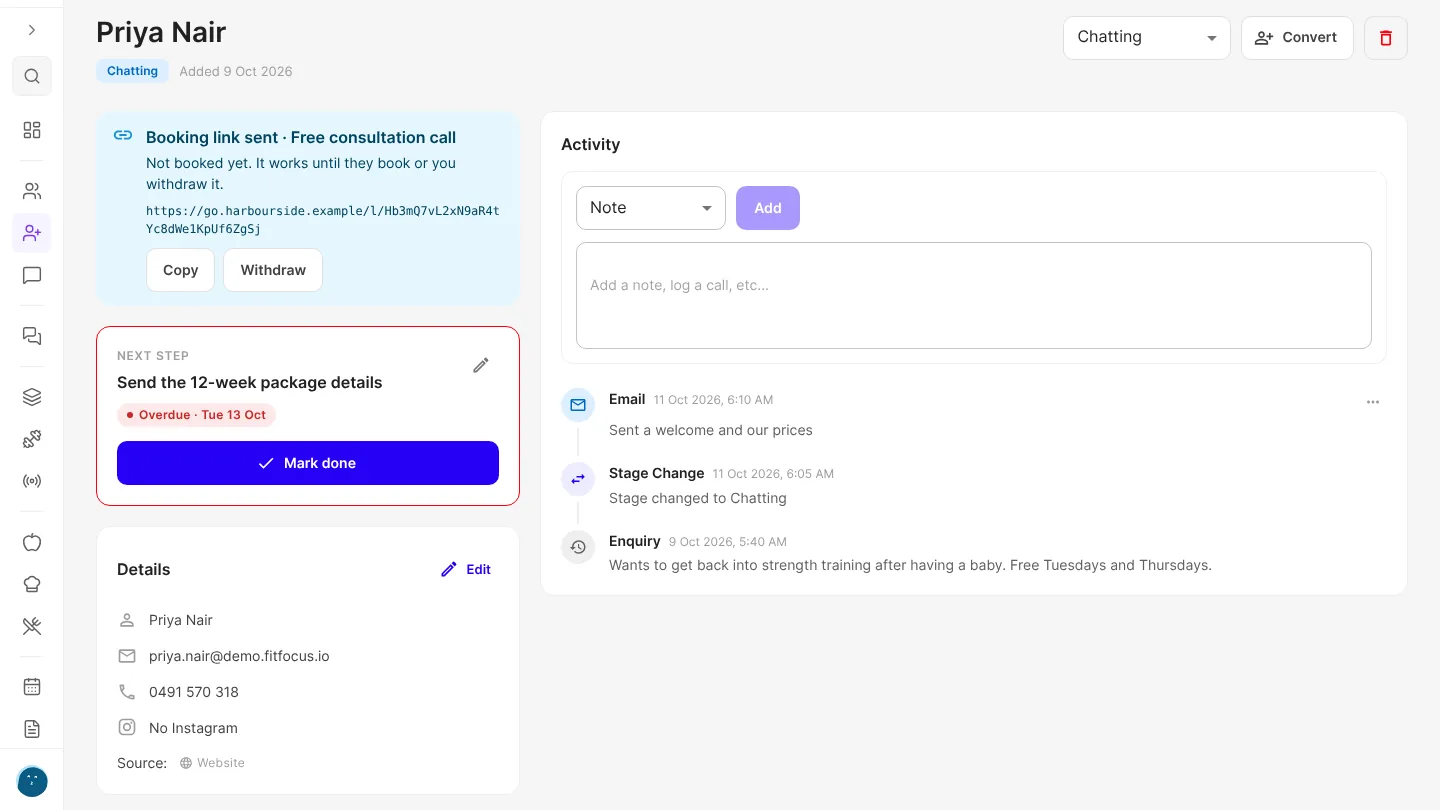
Share one enquiry link or add a form to your website, and every enquiry lands in Leads with where it came from. Each lead gets a next step, a due date and a reminder.

The Exercises That Travel Together: What Coaches Pair
Coaches do not pick exercises one at a time, they pick them in pairs. Across 70,000 logged workouts, the same couplings keep turning up, and two rules sit behind almost all of them.